Garuda HCM app · Getting started
Your workplace,
in your pocket.
Punch in, apply for leave and check your payslips from your phone. Here’s how to install Garuda HCM and join your company. It takes a few minutes, and all you need is the company code from your HR team.


Free on iPhone (iOS 15.0 or later) and Android (7.0 or later).
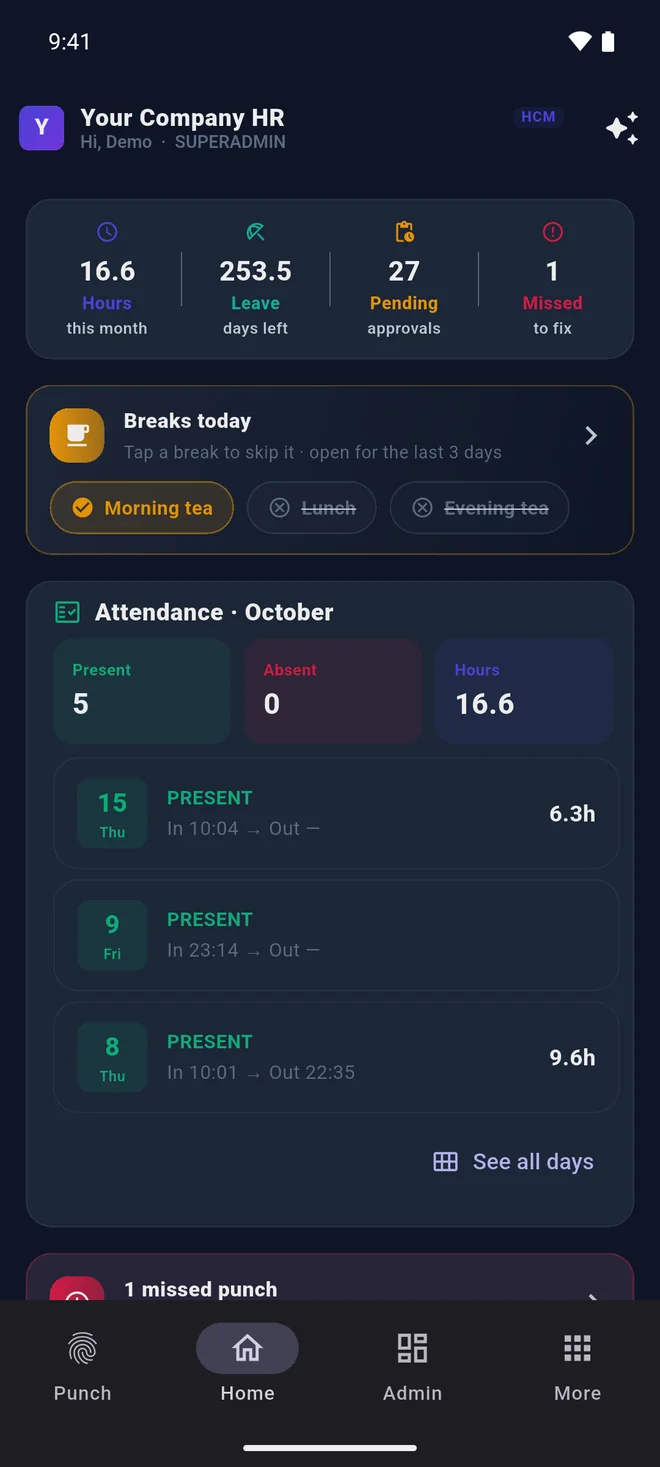
How it works
Set up once. After that, it’s one tap a day.
Steps 1 to 5 get you connected. Steps 6 to 9 cover what you’ll do every day. Jump to any step.
Real screens from the iPhone and Android apps. Steps 2, 3 and 5 show both; the other steps show Android, and the iPhone app works the same way.
Part one
Get connected
Do this once. It takes a few minutes.
Step 1 of 9
Install Garuda HCM
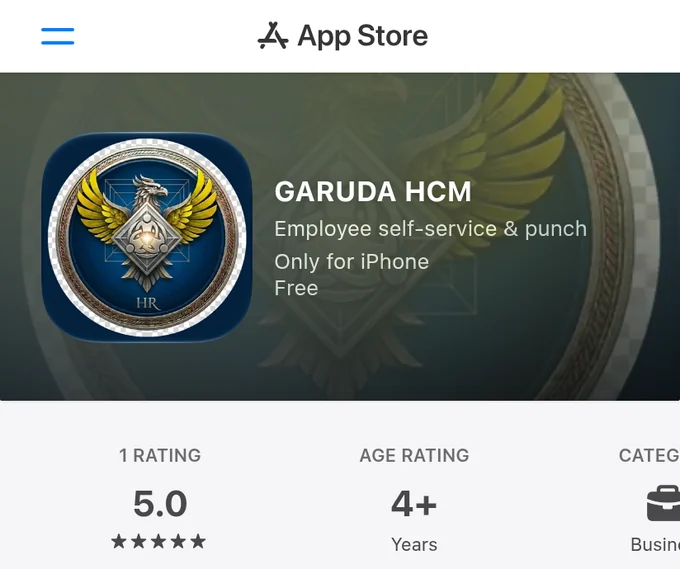
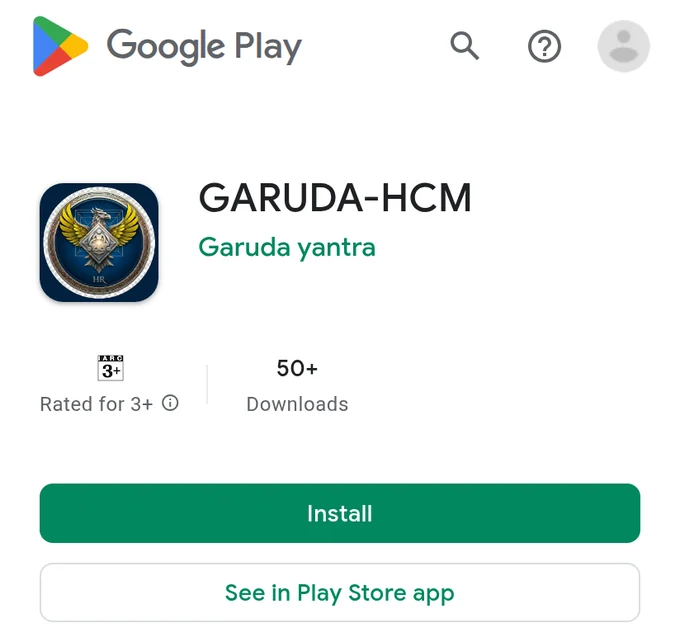
Garuda HCM is free on the App Store and Google Play. Search for Garuda HCM, or use the buttons below. Reading this on a computer? Point your phone’s camera at one of the codes.
iPhone
Android
Works on iPhone with iOS 15.0 or later, and on Android 7.0 or later.
Step 2 of 9
Open it and allow permissions
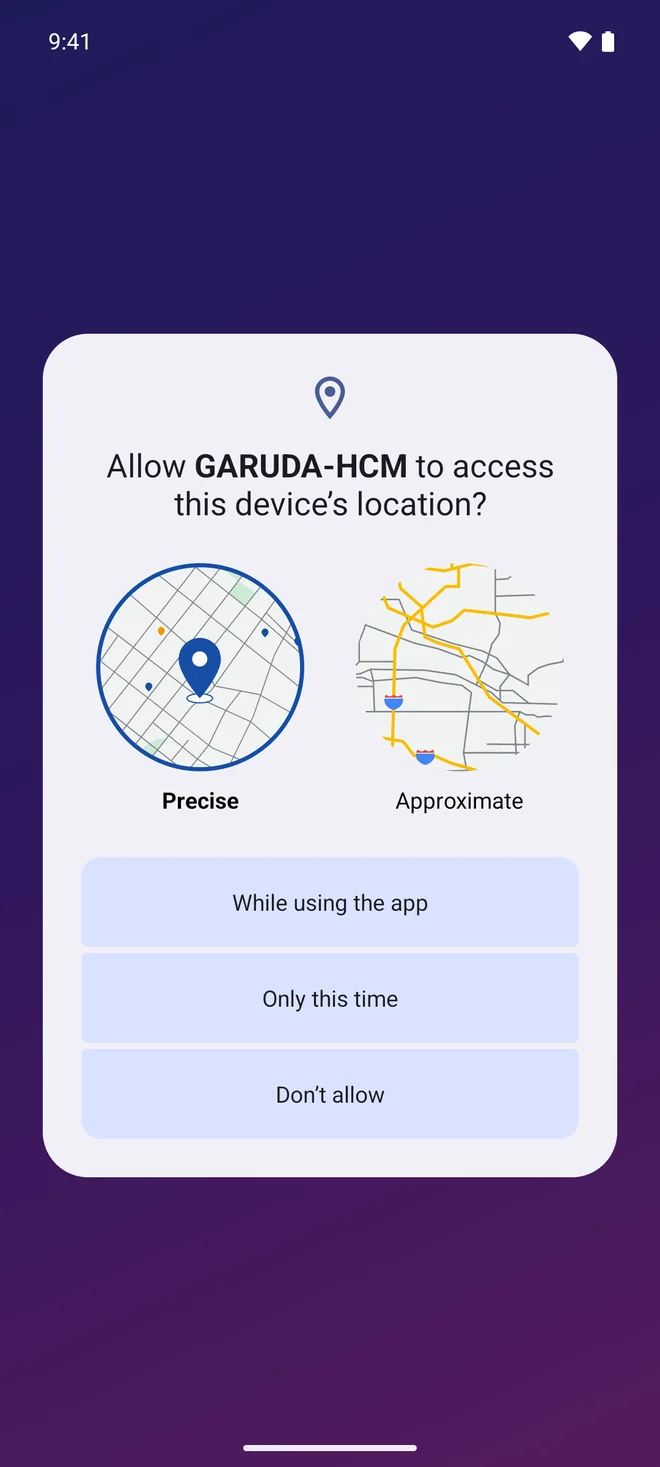
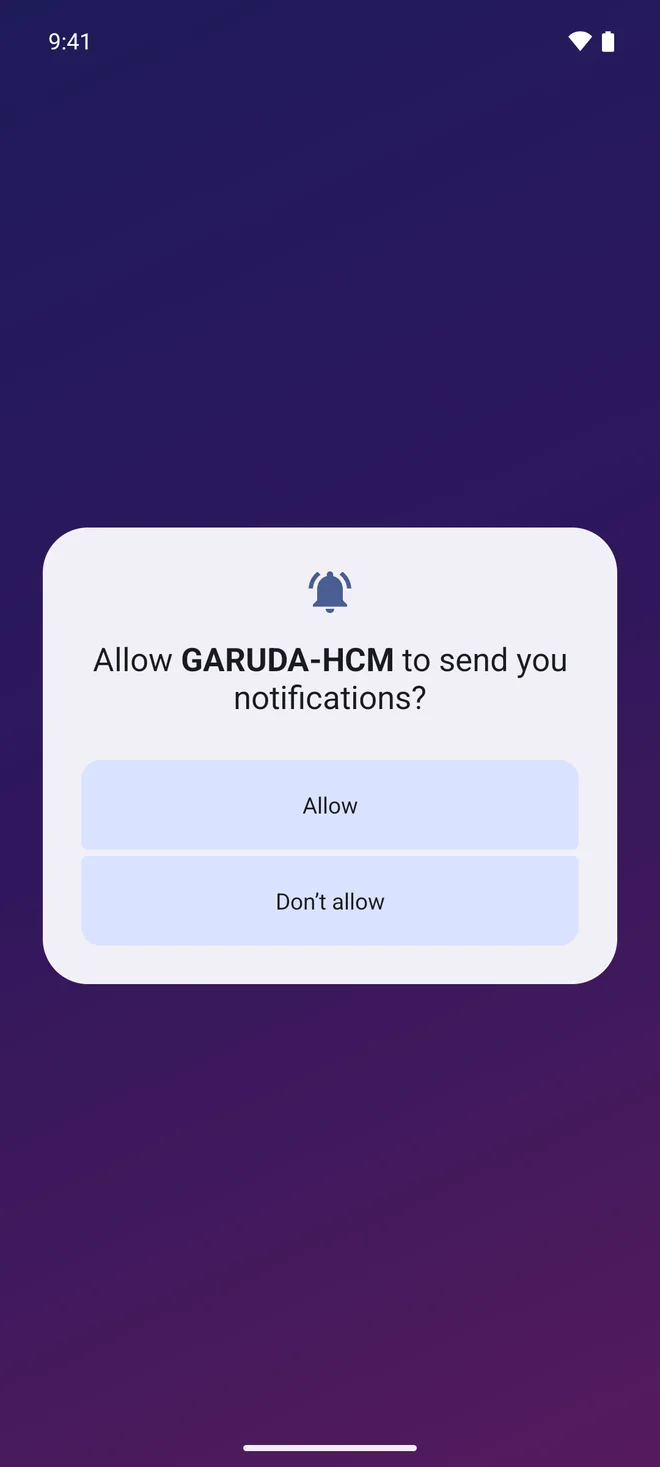
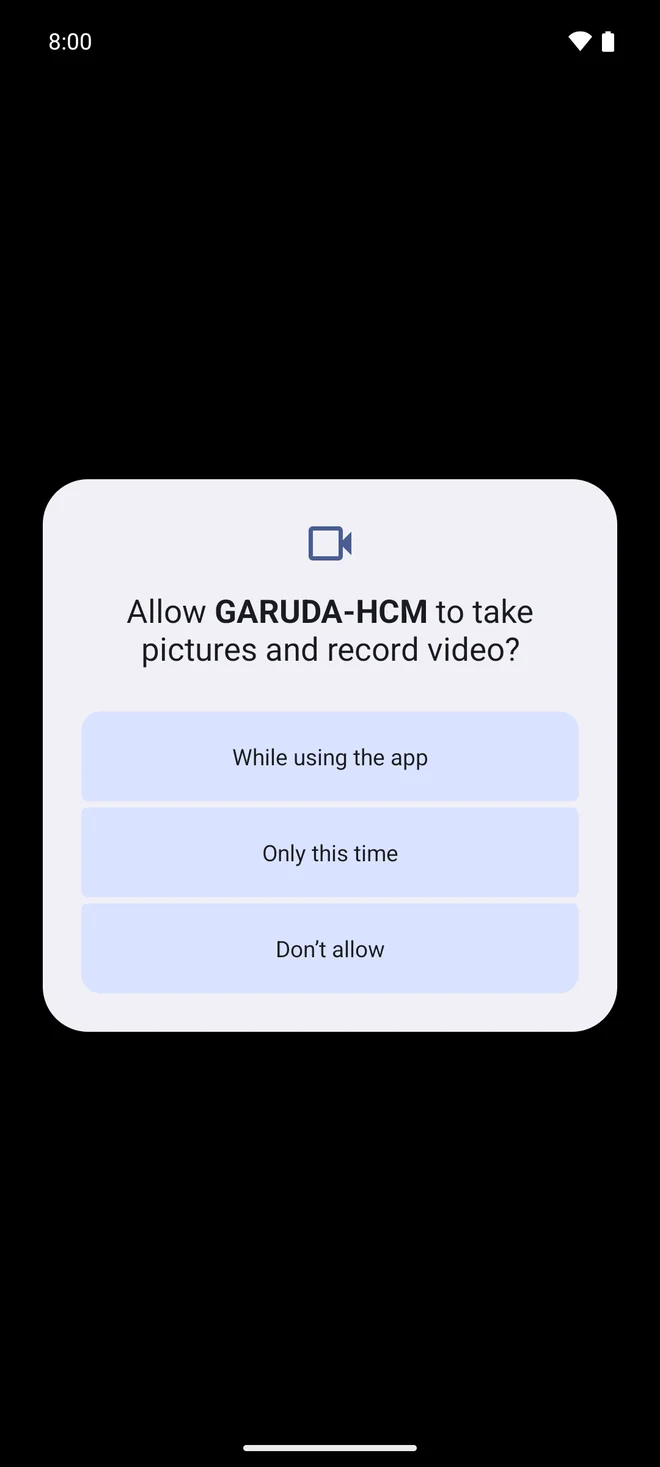
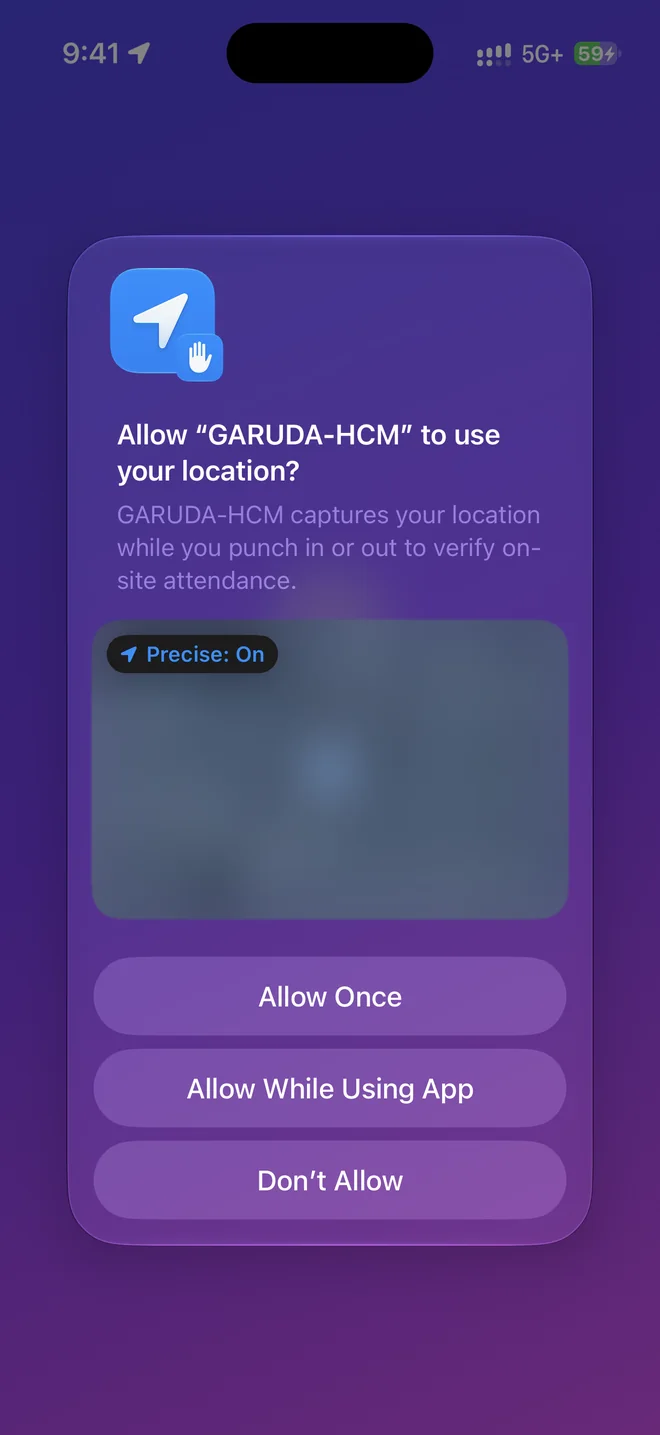
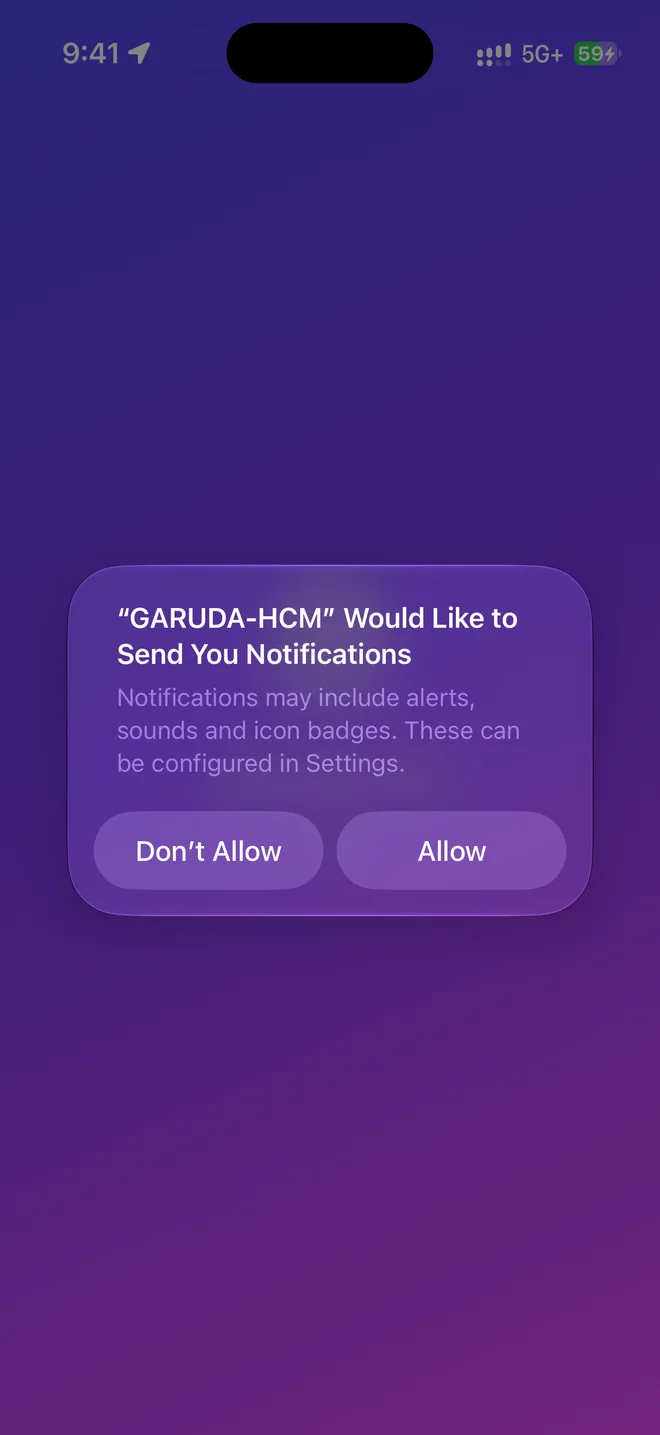
The first time you open the app, your phone asks whether Garuda HCM may use a few things. Here is what each one is for, so you can decide with the facts.
Location: choose While using the app
On iPhone: Allow While Using App
Punching needs it. Each punch records where it was made, and the app checks you’re inside your workplace’s punch zone. If your company uses on-duty location tracking, the app may also ask to use location in the background, and tells you why first.
Notifications: allow
Optional, but recommended. It’s how leave decisions, approvals waiting for you and reminders from your company reach you.
Camera: asked when it’s first needed
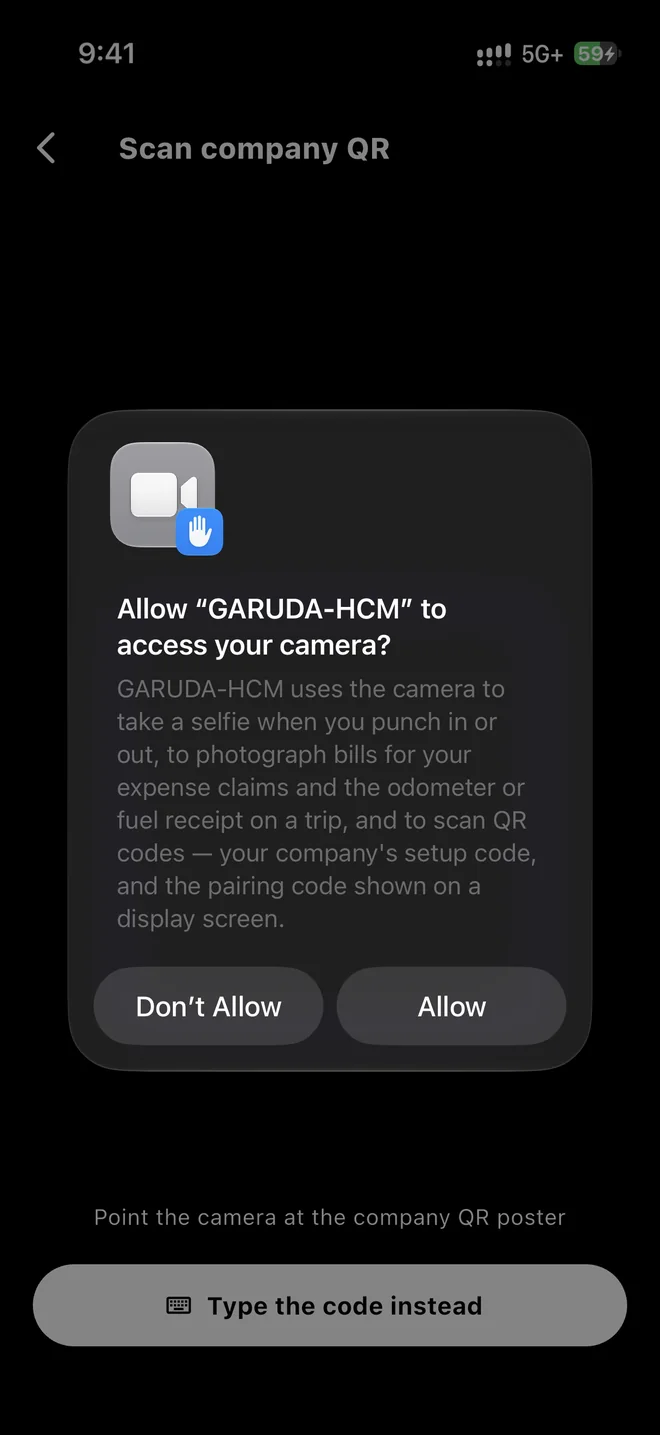
For the punch selfie, if your company uses selfie punching, and to scan your company’s QR code. Choose While using the app on Android, or Allow on iPhone.
Changed your mind? You can change any of these later in your phone’s Settings, under Garuda HCM.
Step 3 of 9
Enter your company code
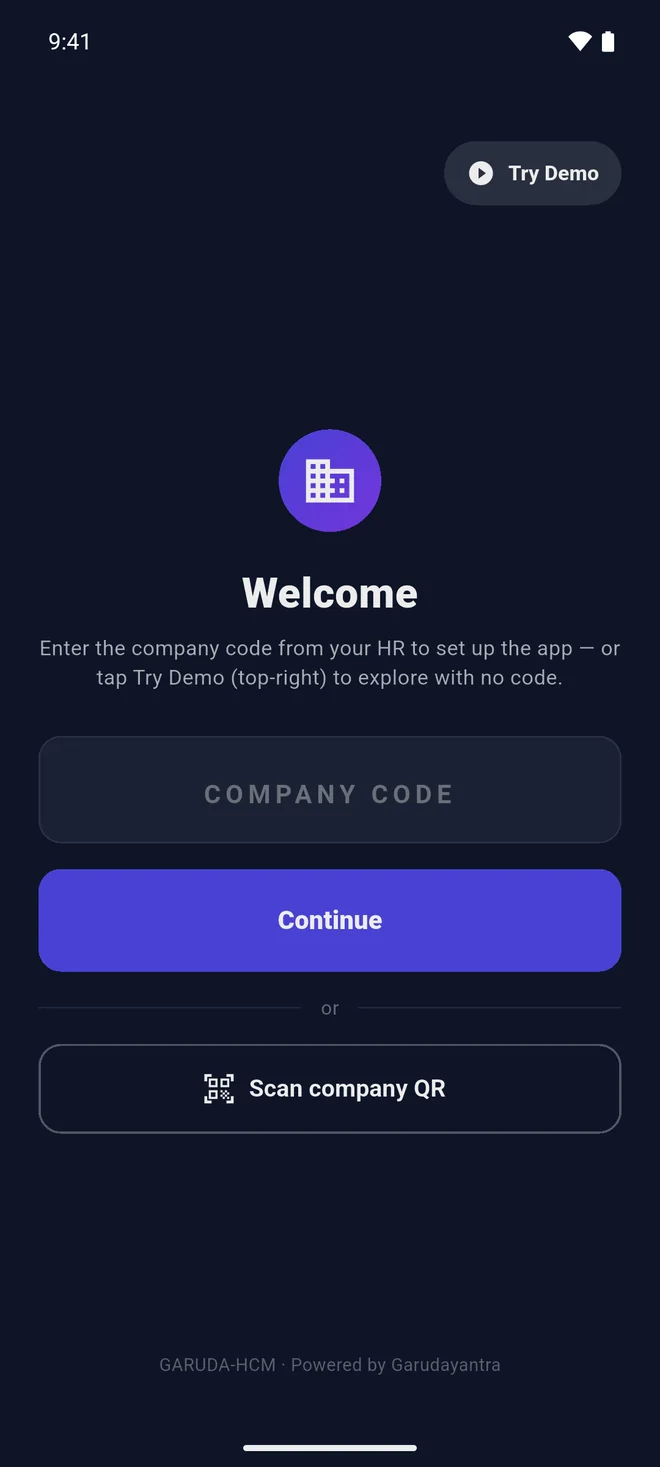
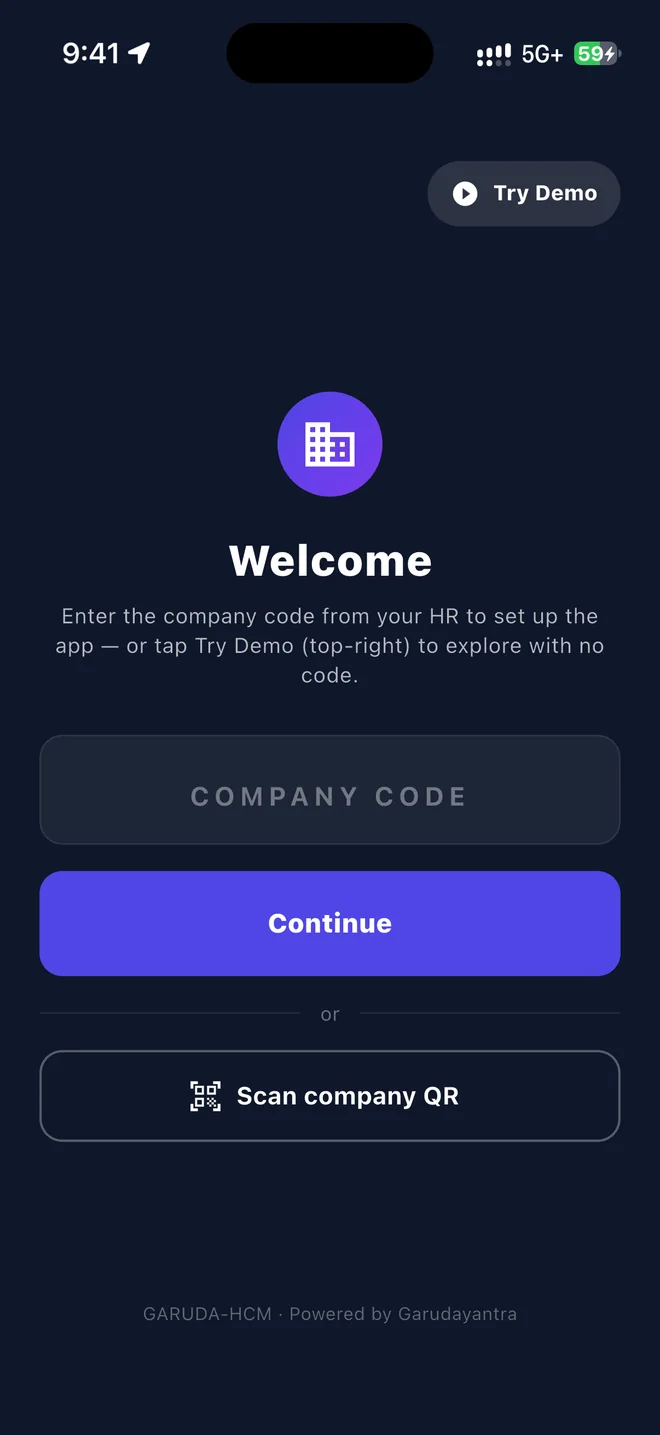
Your HR or admin team gives you a short company code. It tells the app which company you work for. On the Welcome screen, type it into the Company code box and tap Continue.
Example
YOURCO
Example only. Your real code comes from your HR team.
- At least four characters, letters and digits
- Any case:
yourcoworks as well asYOURCO - No spaces inside it
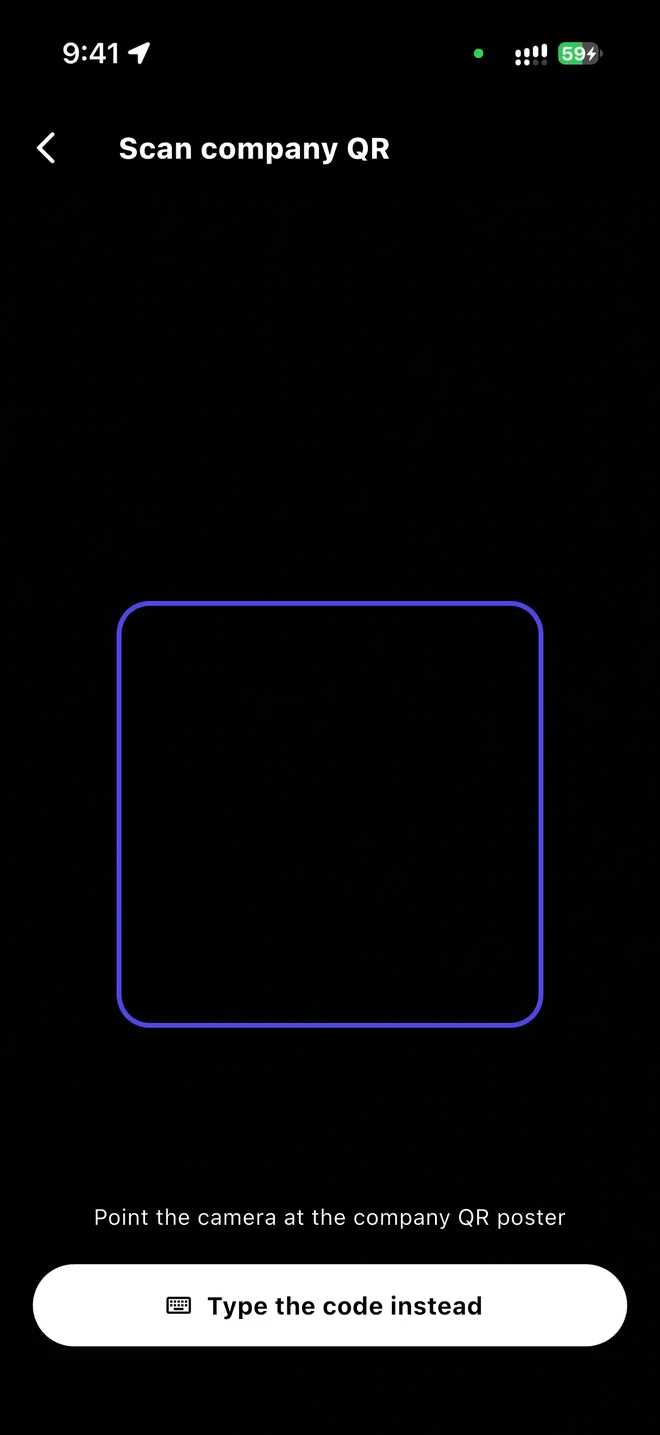
Got a QR poster from HR? Tap Scan company QR and point your camera at it instead of typing. The first time, your phone asks to use the camera; allow it. To go back to typing, tap Type the code instead.
Just having a look? Try Demo, at the top right, opens a sample company without a code.
Step 4 of 9
Check it’s your company
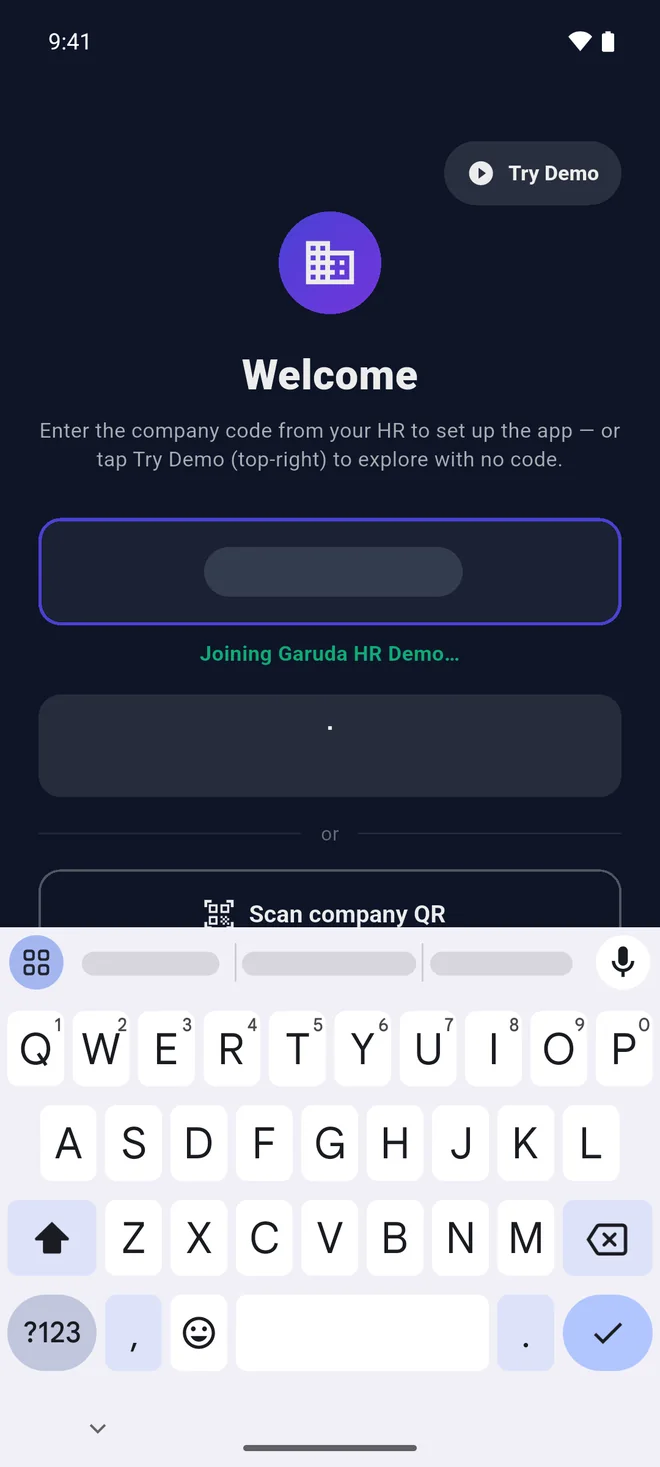
After you tap Continue, the app shows Joining and the name of the company the code belongs to, just under the box, then opens that company’s sign-in. Check that the name is your employer’s.
Not your company? Don’t sign in. Check the code with HR: a single wrong letter can point to a different company.
“We couldn’t find that code” means no company has that code. Check it with HR and type it again.
Step 5 of 9
Sign in
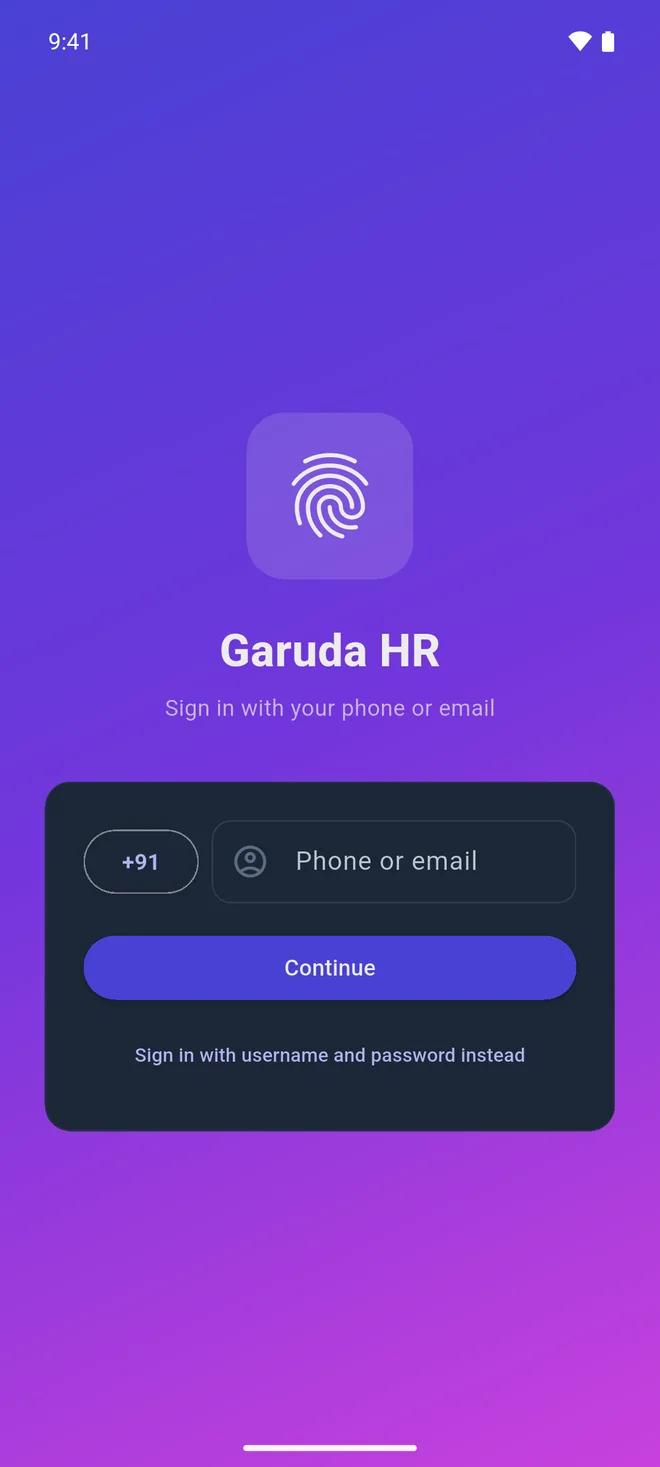
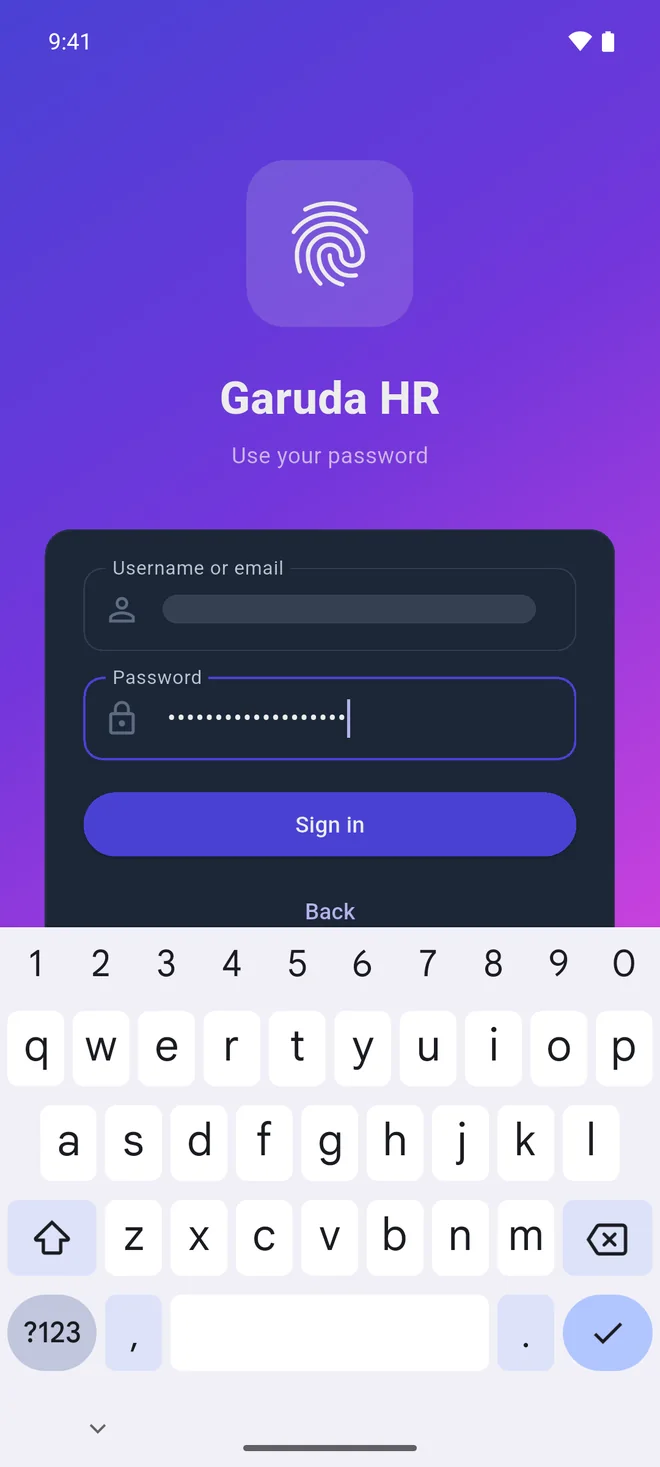
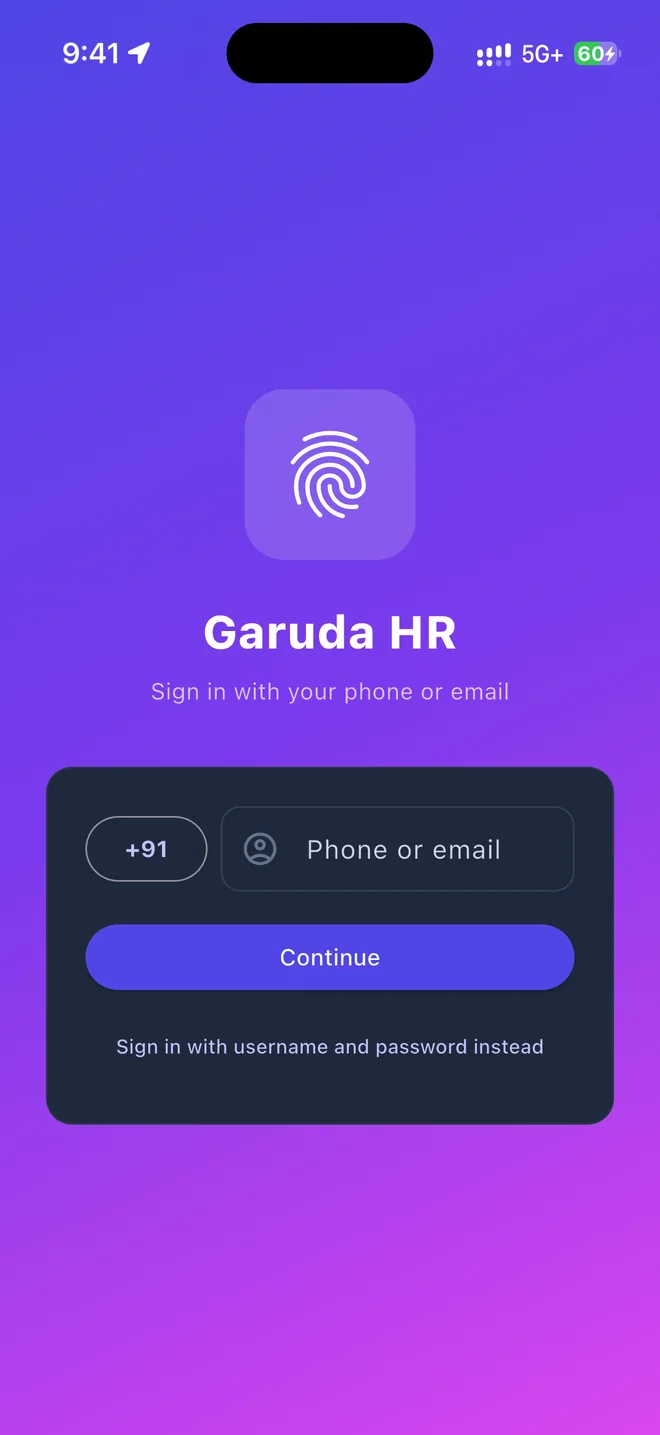
Your company’s sign-in opens. Enter the phone number or email your HR team has on record and tap Continue. A one-time code arrives by WhatsApp or email; enter it and you’re in.
- Prefer a password? Tap Sign in with username and password instead and use the username and password HR gave you.
- Type your username exactly as HR sent it. Capital letters count, so
Priya.Sandpriya.sare different usernames. - Forgot your password? There’s no reset inside the app. Sign in with a one-time code instead, or ask your HR or admin team to reset it.
Part two
Every day
What you’ll use the app for once you’re in.
Step 6 of 9
Check in and out
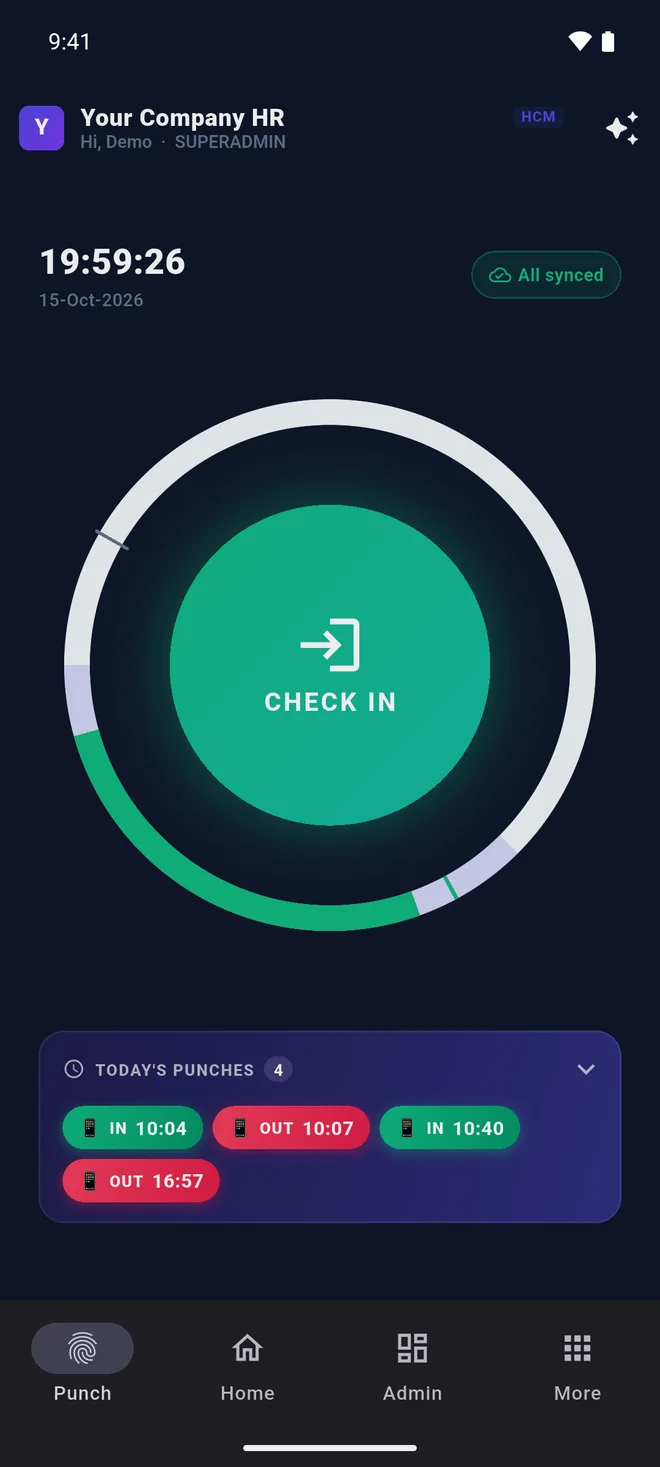
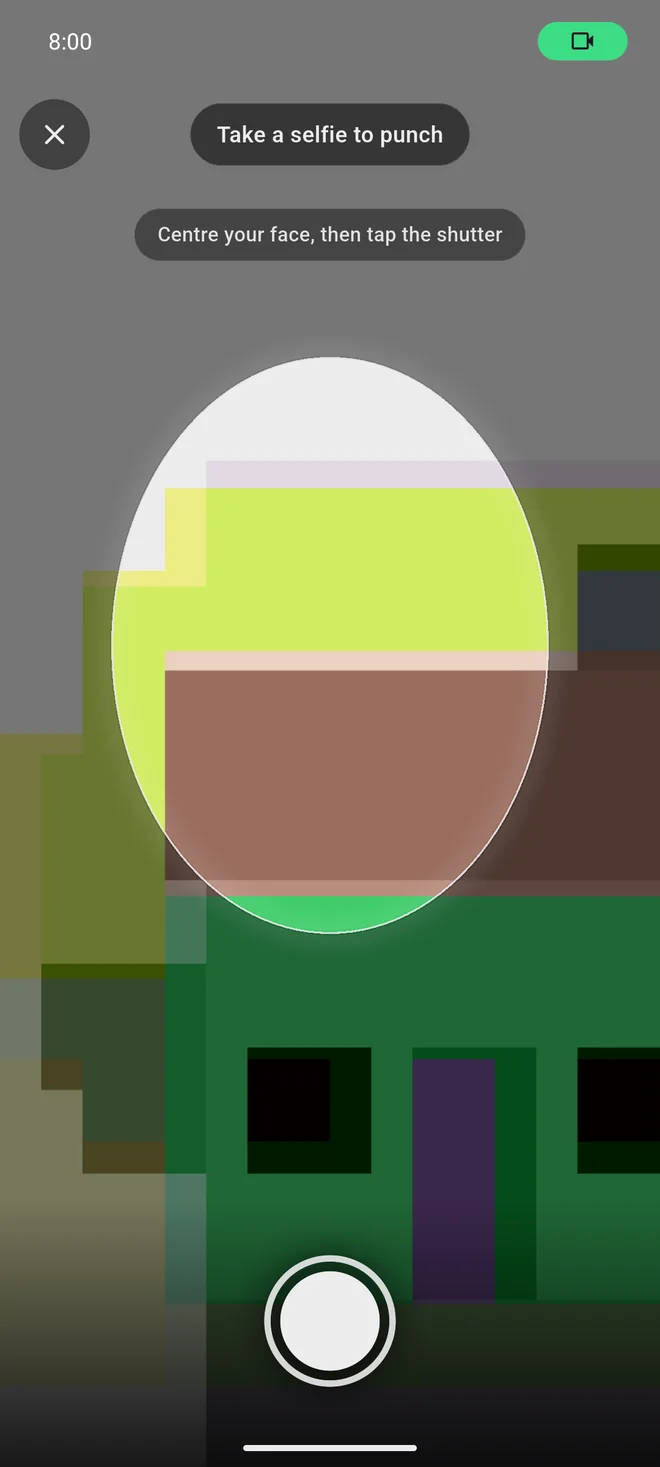
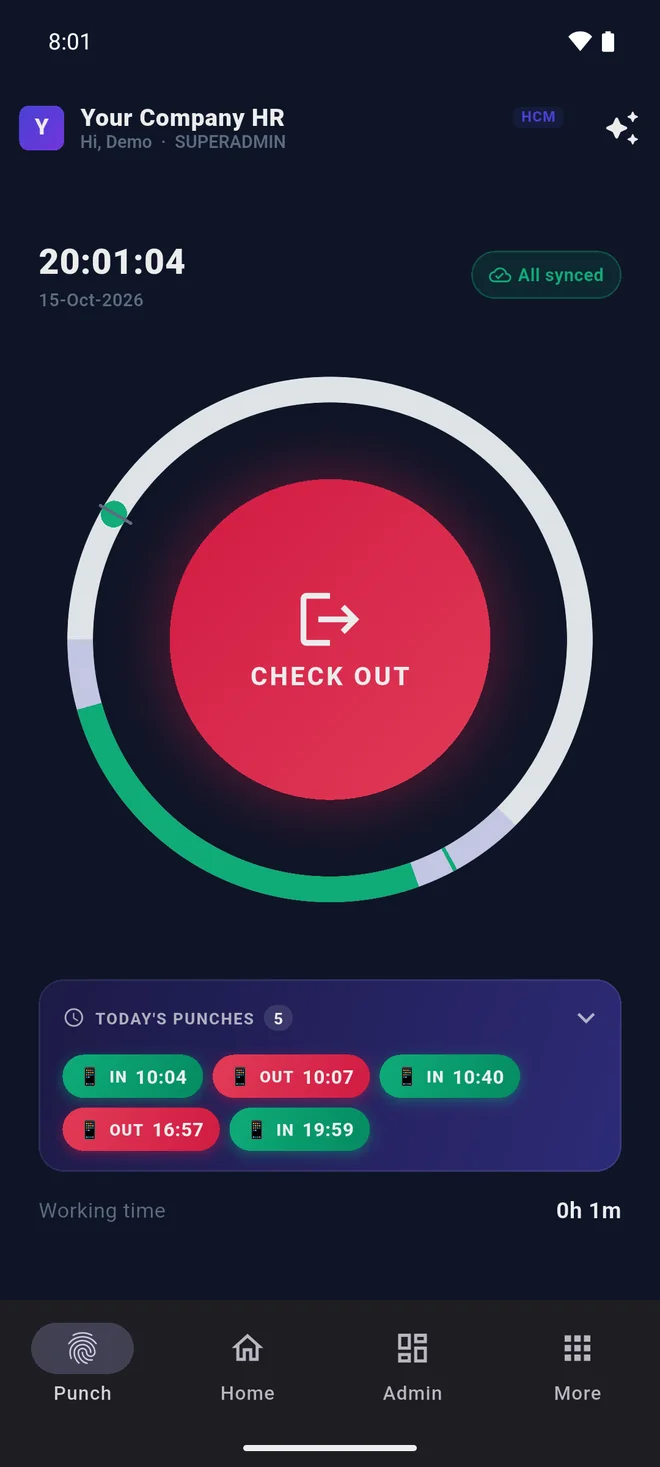
The app opens on the Punch tab. Tap CHECK IN when you start work. If your company uses selfie punching, centre your face and tap the shutter. Your punch appears under Today’s punches, and the button becomes CHECK OUT for when you finish.
No signal? Punch anyway. The punch is saved on your phone with its original time. The badge shows 1 queued, then All synced once it’s sent.
Finding your way: the tabs along the bottom are Punch · Home · More. Admins and approvers also see Admin. You only see what your company has switched on.
Forgot to punch? Tell your manager or HR so the day can be corrected.
Step 7 of 9
Apply for leave
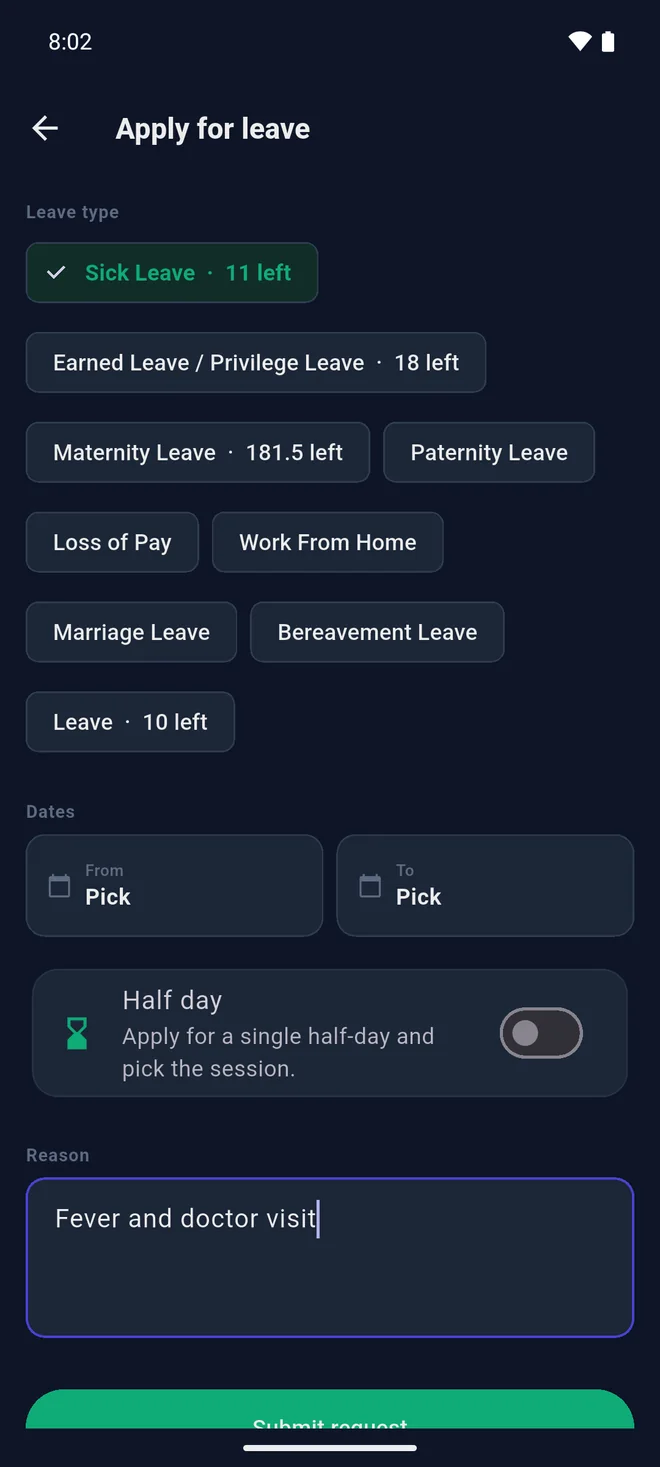
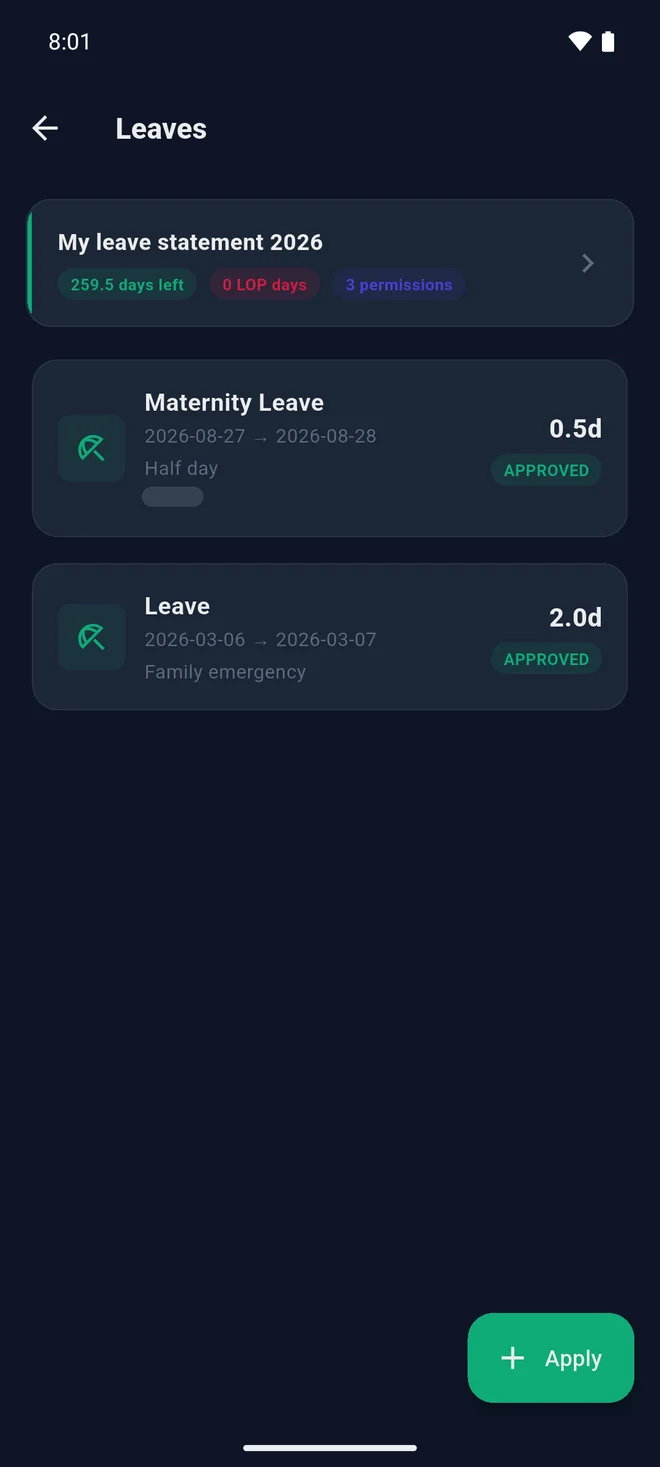
Go to More → Leave, or tap the leave figure on Home. You’ll see your balance and past requests. Tap Apply, then on Apply for leave pick the leave type and dates (or Half day), type a reason and tap Submit request.
Your request goes to your approver, and its status shows under Leaves. With notifications allowed, you’ll hear as soon as it’s decided.
Step 8 of 9
View your payslips
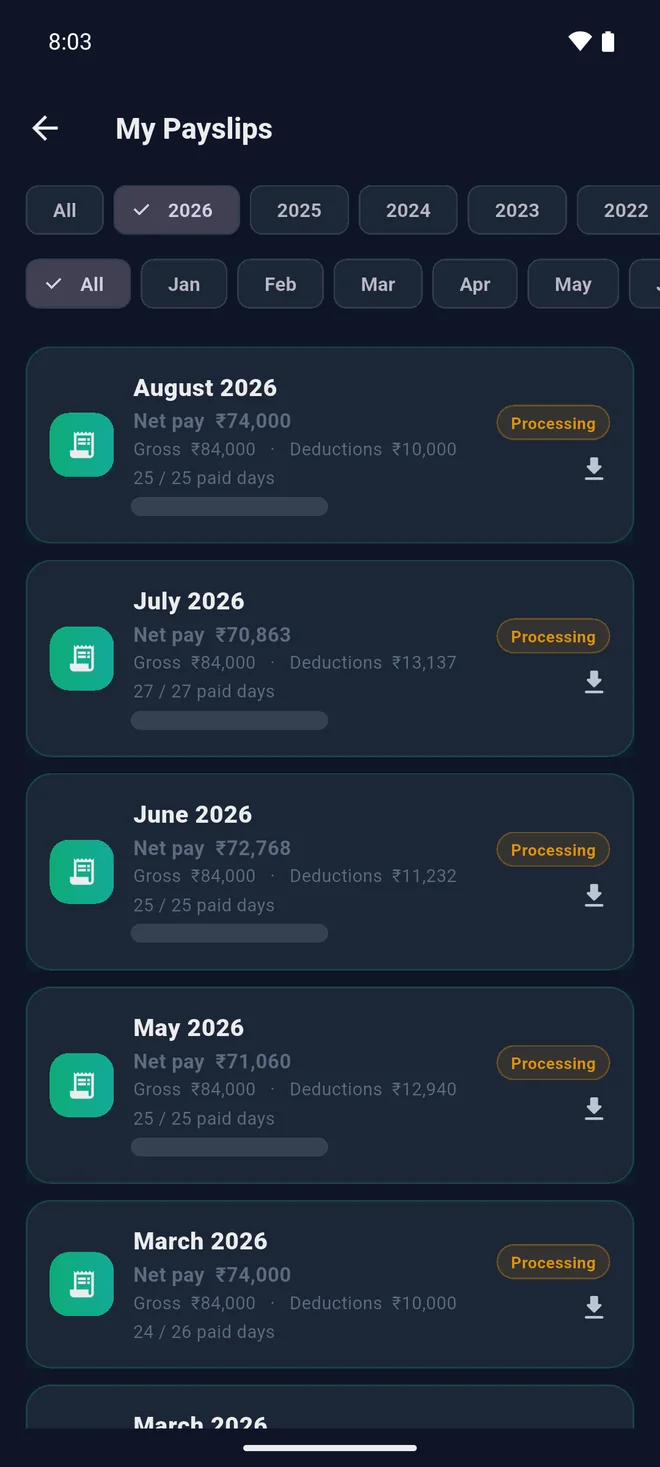
If your company has turned on payslips in the app, go to More → My payslips. Filter by year and month, then tap the download arrow to open the PDF.
A month’s payslip appears once your company has processed payroll for it. Early in a month, look at last month.
Don’t see My payslips at all? Your company decides whether payslips are available in the app. Ask HR.
Step 9 of 9
Switch company
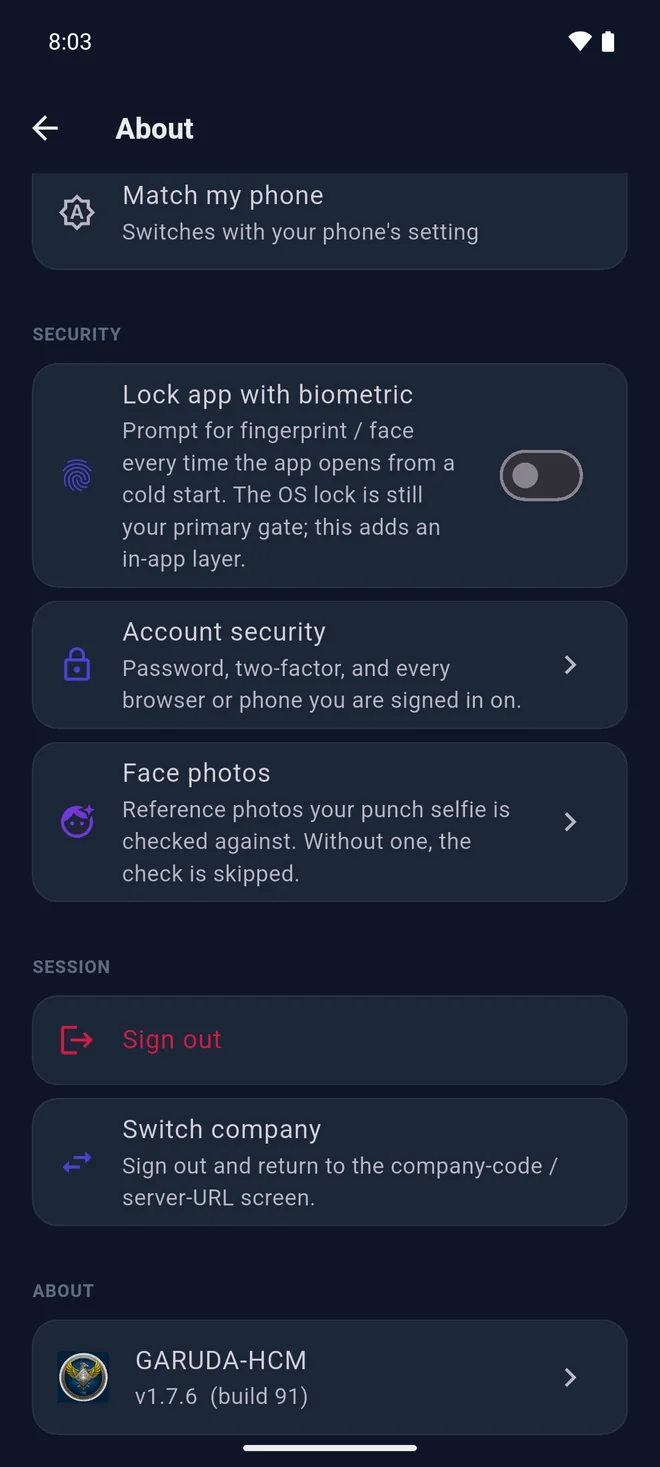
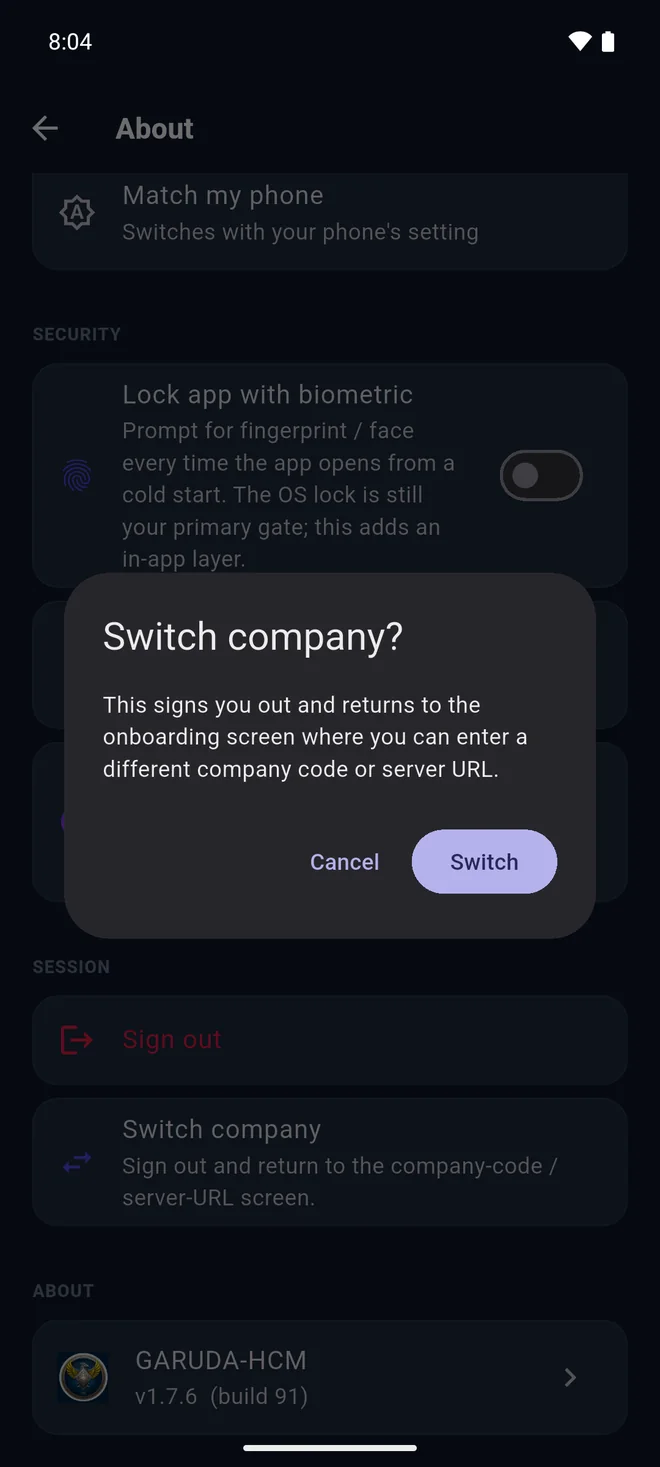
Changed employer, or joined with the wrong code? Go to More → About and, under Session, tap Switch company, then Switch. You’re signed out and taken back to the company-code screen. Enter the new code and sign in with that company’s details, as in steps 3 to 5.
Sign out is different. Plain Sign out keeps the same company and takes you back to its sign-in. Use Switch company to change company.
Each company gives you its own sign-in. The username and password from one employer won’t work at another.
For HR admins
Bring your team onto the app in one message.
Employees need two things from you: your company code, and their own username and password. Here’s how to give them both.
Find your company code
Every company on Garuda HCM has its own short code, at least four letters long, such as YOURCO. Your Garuda account manager gives it to you when your workspace is set up.
Don’t have it to hand? Email [email protected] from your registered admin address and we’ll confirm it.
Before you share it
- Every employee has a login, with a username and a temporary password.
- Mobile punching is allowed for the people who should punch from the app.
- Your punch zones and selfie rules are set, if you use them.
- Payslips in the app are a company setting. Turn them on if you want employees to see their own.
Send this to your team
Install Garuda HCM from the App Store or Google Play (setup guide: garudayantra.com/app-guide). Open it, enter our company code YOURCO, then sign in with the username and password HR sent you.
Rolling out to a large team, or need help? Write to [email protected] or use the contact page.
Questions
If something isn’t working
The app says “We couldn’t find that code”. What now?
The code doesn’t match a company. Check it with your HR team and type it again, with no spaces. Capital letters don’t matter: yourco and YOURCO are the same code. If the app says the code looks too short, remember codes are at least four characters. The code belongs to your employer, so only your HR or admin team can give it to you. If they confirm the code and the app still can’t find it, ask them to contact Garuda support.
Which phones does it work on?
iPhones with iOS 15.0 or later, and Android phones with Android 7.0 or later. Install it from the App Store or Google Play.
I’ve changed my phone. How do I move over?
Install Garuda HCM on the new phone, enter your company code and sign in as usual. Your records belong to your company, not to the phone. If your company allows only one phone per employee, HR may need to approve the new phone before you can punch from it, so let them know when you switch. Before you retire the old phone, open the app on it once with a network connection so that any offline punches finish sending.
Why can’t I check in?
It’s usually location. Check that location is switched on, that Garuda HCM is allowed to use it while you use the app (on iPhone, also turn on Precise Location) and that you’re inside your workplace’s punch zone. A weak GPS signal indoors can place you outside it, so try near a window or step outside. If your company uses selfie punching, the camera must be allowed too. If none of that helps, mobile punching may not be turned on for your account. Ask HR.
The app is asking me to update.
Tap Update. It takes you to the App Store or Google Play. Updates carry fixes and improvements, and your company can require a minimum app version, so an old version may stop punching until it’s updated. Turning on automatic app updates on your phone saves you the prompt.
Is it different on iPhone and Android?
No. It’s the same Garuda HCM app with the same steps on both. Permission prompts and fonts look slightly different because each phone follows its own design. This page shows both: steps 2, 3 and 5 have iPhone screens too, behind the iPhone and Android switch. The other steps show the Android app, and the iPhone app works the same way.
I forgot my password.
There’s no password reset inside the app. On the sign-in screen, enter your phone number or email and tap Continue to sign in with a one-time code instead. Or ask your HR or admin team to reset your password.
What does the app do with my information?
The app collects what your company’s HR needs, for example your location when you punch and a selfie if your company uses selfie punching, and sends it to your employer’s Garuda HR system. For the full detail, read the Garuda HCM privacy policy. To ask for your account and data to be deleted, see data deletion.
Can I use the app if my company doesn’t use Garuda?
Garuda HCM is the employee app for companies that use Garuda HR, so you need a company code and a sign-in from your employer. To look around first, tap Try Demo on the app’s Welcome screen to open a sample company. If you run HR for a company and want to see Garuda in action, open the live demo or talk to us.
Still stuck? Your HR team can help with your code, sign-in and permissions. For anything else, write to [email protected].
Ready when you are.
Install Garuda HCM, enter your company code, and you’re in.